
- A Human Agent — the call is routed to a User or team on your side, and a real person talks to the customer.
- A Voice AI Agent (Alpha Stage) — an AI answers the call automatically, 24/7.
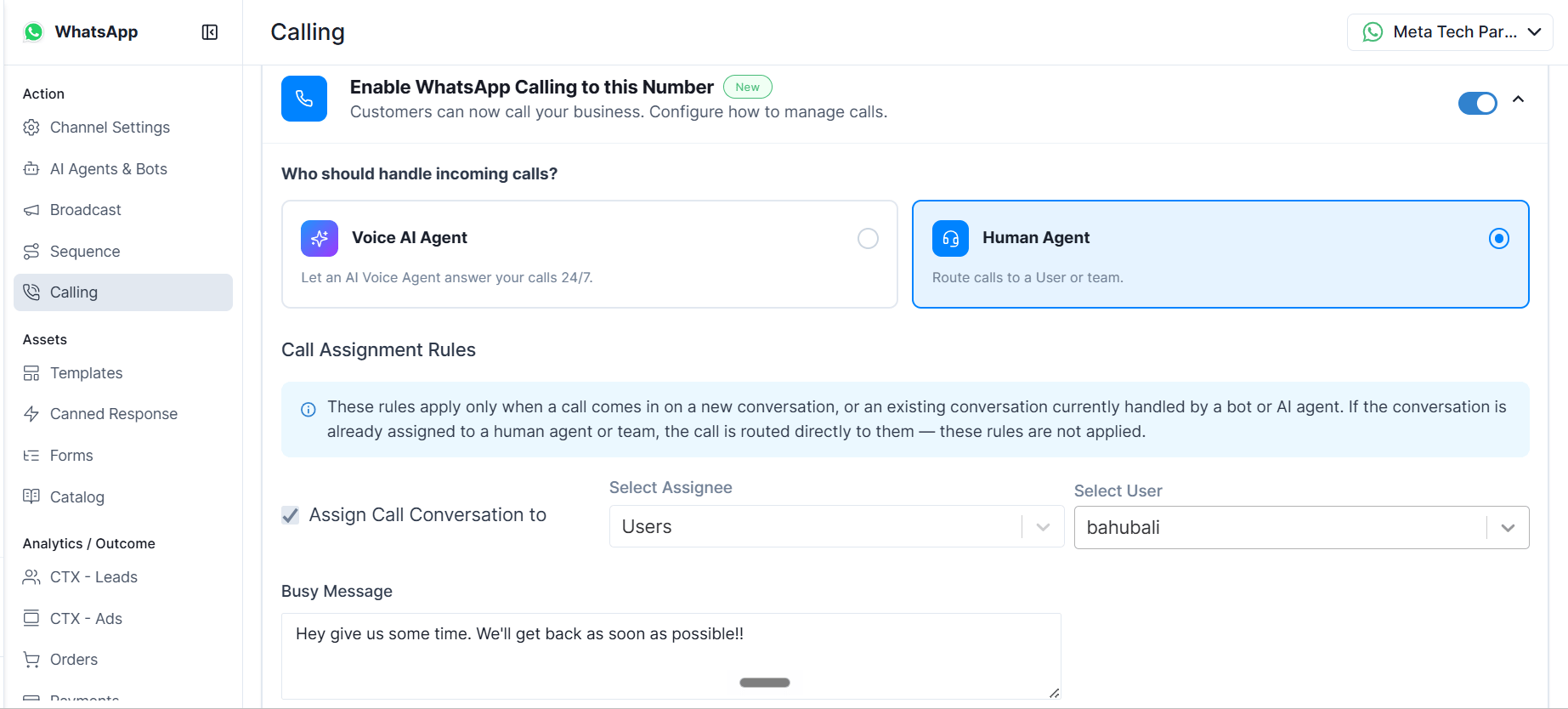
How a Human Incoming Call Works
When calling is enabled on your WhatsApp number and Human Agent is set as the handler, customers see a call button in your business chat. When they call:- The call rings to your team or a specific agent, based on your Call Assignment Rules.
- The agent sees who’s calling, with actions to Accept, Decline, or Jump to Conversation (which opens the caller’s chat).
- If no one is available, your configured Busy Message is sent automatically.
- Every call appears in the conversation as a call record, and in your call logs — so your team always has context to follow up.
Setting Up Incoming Calls
- Go to WhatsApp → Calling in Gallabox.
- Switch on Enable WhatsApp Calling.
- Under Who handles incoming calls, select Human Agent.
- Configure your Call Assignment Rules (below).
- Write your Busy Message.
- Save Changes.
Call Assignment Rules
Call Assignment Rules decide which agent an incoming call rings — for calls where the conversation isn’t already owned by a human agent. Assignment depends on the conversation’s current state:- Already with a human agent or team → the call is routed directly to them, and your assignment rule is not applied.
- A new conversation, or one currently handled by a bot or AI agent → your Call Assignment Rule applies.
- A specific User — those calls always ring the same person.
- A Team — the call rings one available agent in the team, chosen by round robin (rotation). Only one agent is rung at a time, never the whole team at once.
Agent Availability
- If everyone in the team is busy (all on calls): one agent from the team still gets a lighter “second call” notification.
- If everyone in the team is Away: the call goes unanswered and your Busy Message is sent.
On the Call
When a call comes in, a floating call card appears for the agent. From it, the agent can:- Accept the call to start talking, Decline to reject it, or Jump to Conversation to open the caller’s chat alongside the call.
- Silence the ring for an incoming call without rejecting it.
- Mute / unmute their microphone.
- Open the conversation to see chat history and notes while talking.
- Hang up to end the call. A call timer shows the live duration.
- It appears as a second call, marked Waiting.
- To answer it, the agent must end the current call first — the Accept button stays disabled until then.
- Declining or ignoring it marks the call missed and sends the Busy Message.
When a Call Isn’t Answered
A call is treated as missed when no one answers within the pickup window (set by WhatsApp) or when an agent declines it. In either case:- Your Busy Message is sent to the customer.
- The conversation stays in its original state (a bot conversation reverts to the bot; an unassigned one stays unassigned; a brand-new caller goes to unassigned).
- The call is logged so your team can follow up.
The Busy Message
This is the message sent automatically whenever a call can’t be answered — when every eligible agent is busy or Away, or when a call is missed or declined. It comes with a default message that you can edit anytime in your Calling settings.The Busy Message applies to Human Agent calling only. Voice AI Agents answer automatically, so they don’t use a Busy Message.
Handled by a Voice AI Agent (Overview)
Instead of routing calls to your team, you can let a Voice AI Agent answer incoming calls automatically — around the clock, with no one needing to pick up. Incoming calls handled by a Voice AI Agent are charged and use AI credits. This feature is currently in Alpha. If you want to explore it, contact our product team. A few things that work differently from Human calling:- The AI answers every call, so there’s no ringing to agents, no “busy” state, and no Busy Message.
- After the AI call ends, the conversation is handed off to your team using Post Call Assignment Rules — you decide whether it lands with a specific User, a Team, the contact’s owner, or the agent who previously handled that conversation.
- You build the Voice AI Agent in AI Agents & Bots, then select it on the Calling page when you choose Voice AI Agent as the handler.
Quick Reference
Incoming calling behavior depends on Meta’s WhatsApp Business Calling rules, which may change.