> ## Documentation Index
> Fetch the complete documentation index at: https://docs-next.gallabox.com/llms.txt
> Use this file to discover all available pages before exploring further.
# Workflows for Shiprocket
> Automatically send notifications by creating a workflow with ShipRocket Integration and Gallabox. Choose a message template and map variables for a personalized experience.
### Order Shipped Notifications
To send the order shipped notifications automatically, you will have to create a workflow under the ShipRocket Integration with Gallabox. Let's delve into that.
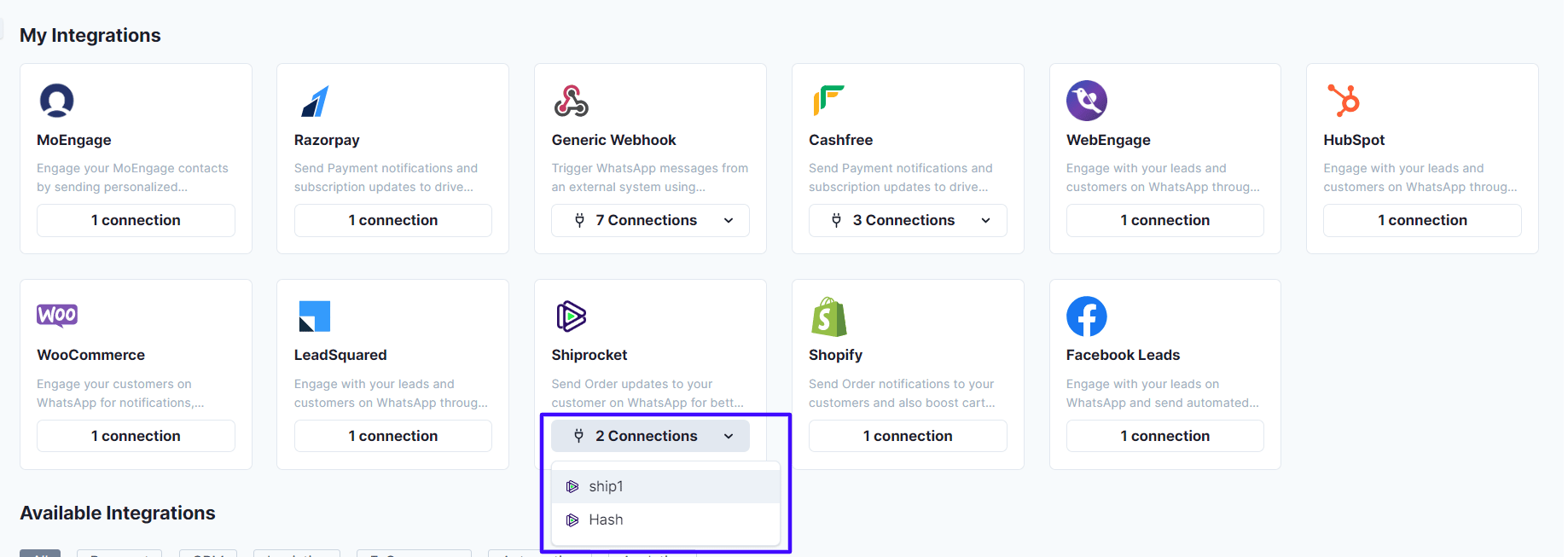
1. Go to **My Integration**. Click on the **ShipRocket Integration** and choose the connection name that you would like to use.
 2. Click on the toggle button beside **Order Shipped Workflow.**
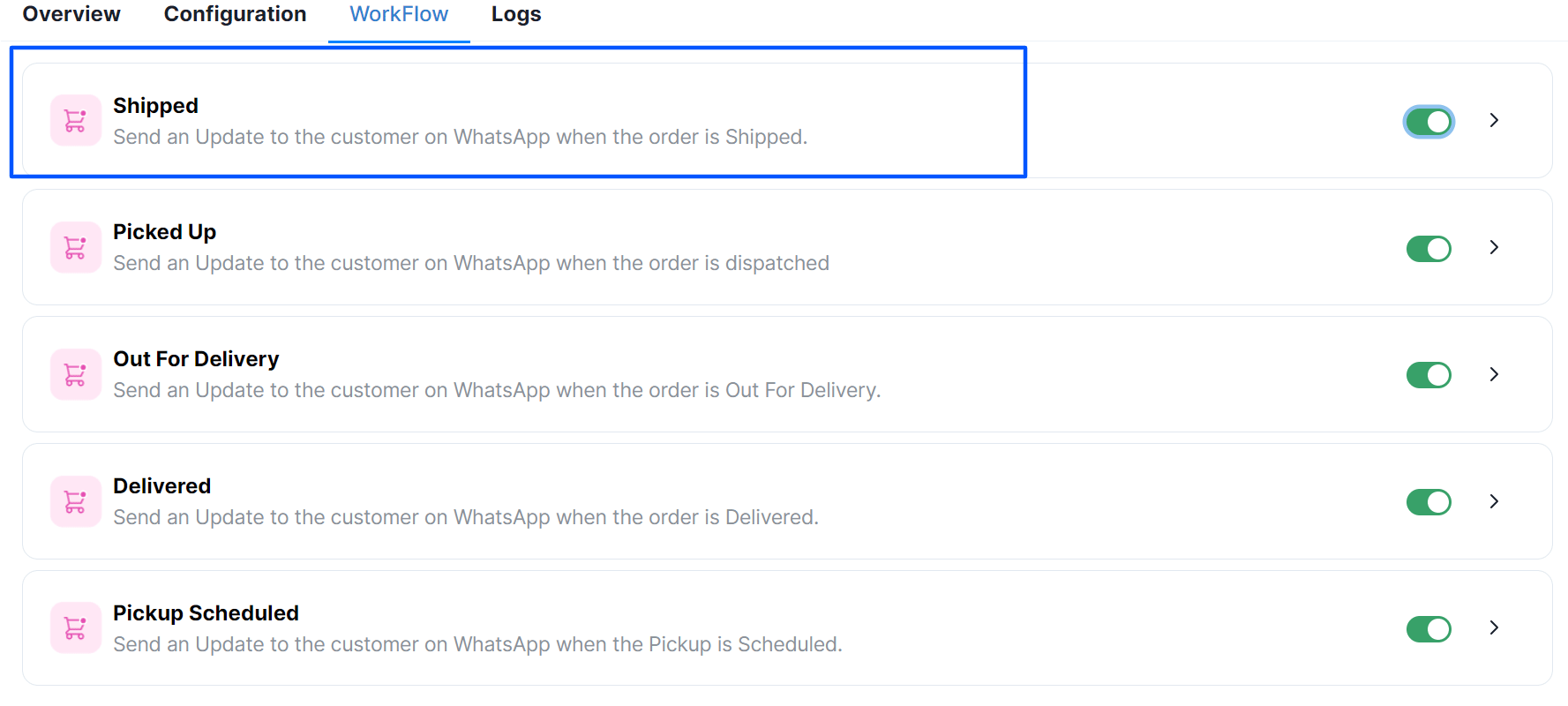 and choose a **Message Template** that you want to send to your customers when they make a payment to your business.
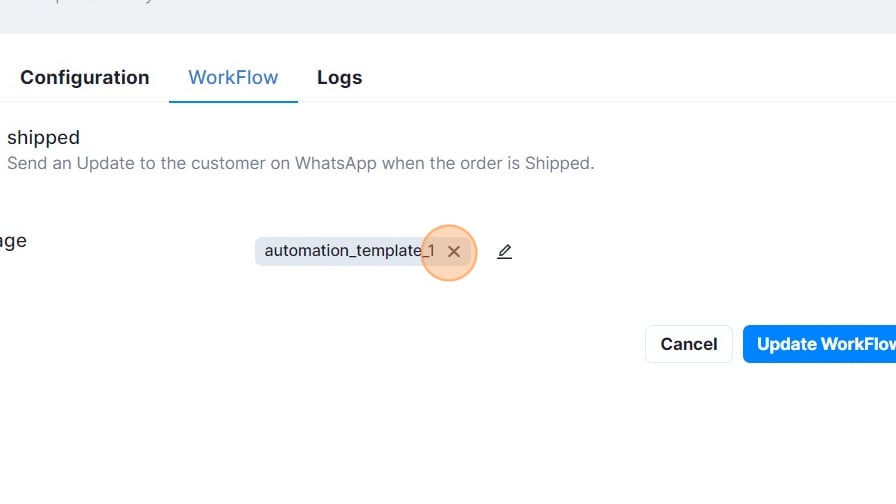 3. Map the **variables** for the selected message templates and click on **Submit.**
***Great! Now you are good to go with the template.** Whenever the order is shipped, a message will be shared with your customers.*
### Order Pickup Notifications
To send the notifications when the order is dispatched automatically, you will have to create a workflow under the ShipRocket Integration with Gallabox. Let's delve into that.
1. Go to **My Integration**. Click on the **ShipRocket Integration** and choose the connection you would like to use.
2. Click on the toggle button beside **Order Picked Workflow**
3. Map the **variables** for the selected message templates and click on **Submit.**
***Great! Now you are good to go with the template.** Whenever the order is shipped, a message will be shared with your customers.*
### Order Pickup Notifications
To send the notifications when the order is dispatched automatically, you will have to create a workflow under the ShipRocket Integration with Gallabox. Let's delve into that.
1. Go to **My Integration**. Click on the **ShipRocket Integration** and choose the connection you would like to use.
2. Click on the toggle button beside **Order Picked Workflow**
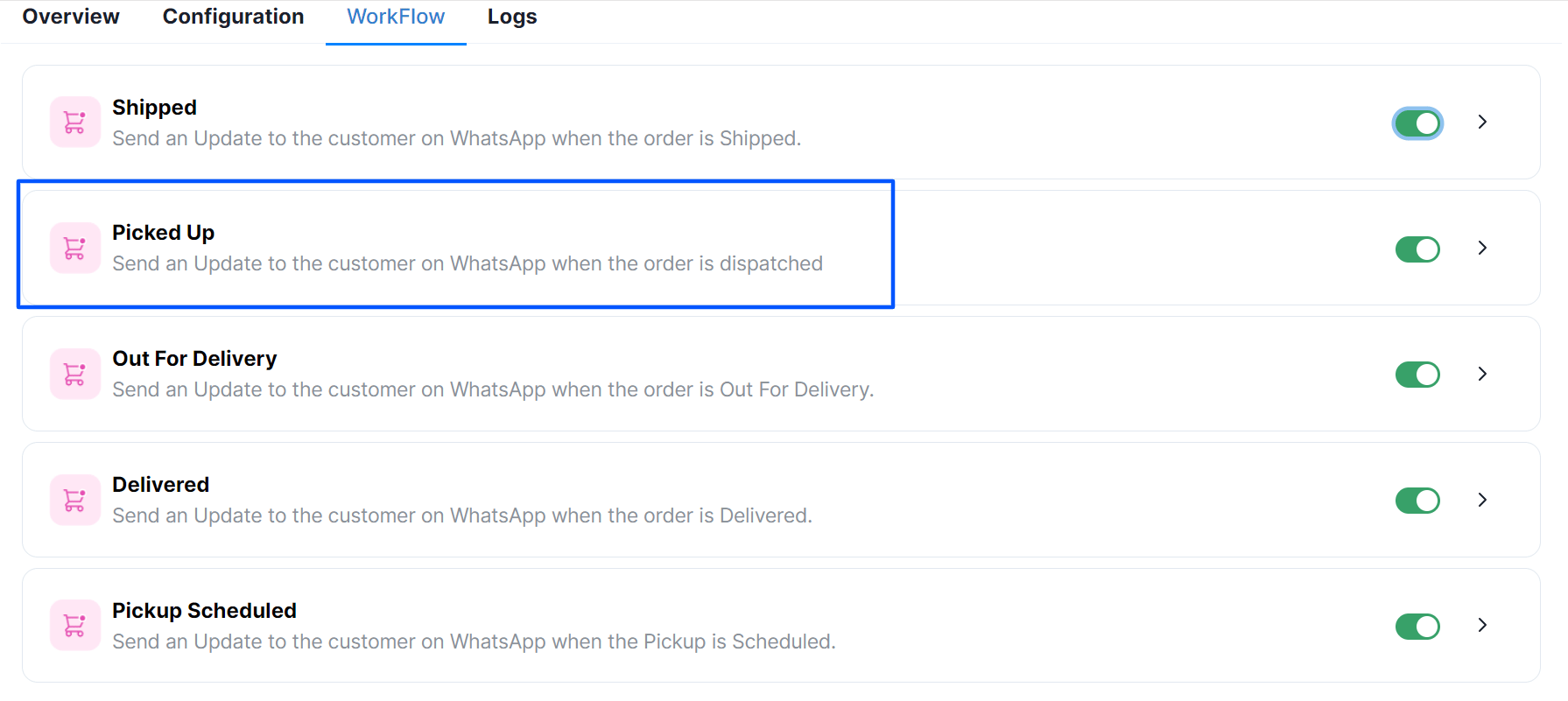 and choose a **Message Template** that you want to send to your customers when they make a payment to your business.
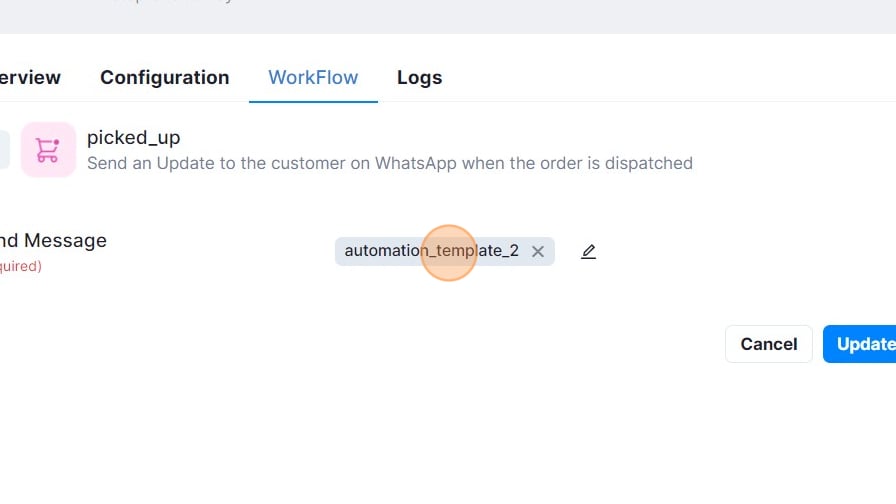 3. Map the **variables** for the selected message templates and click on **Submit.**
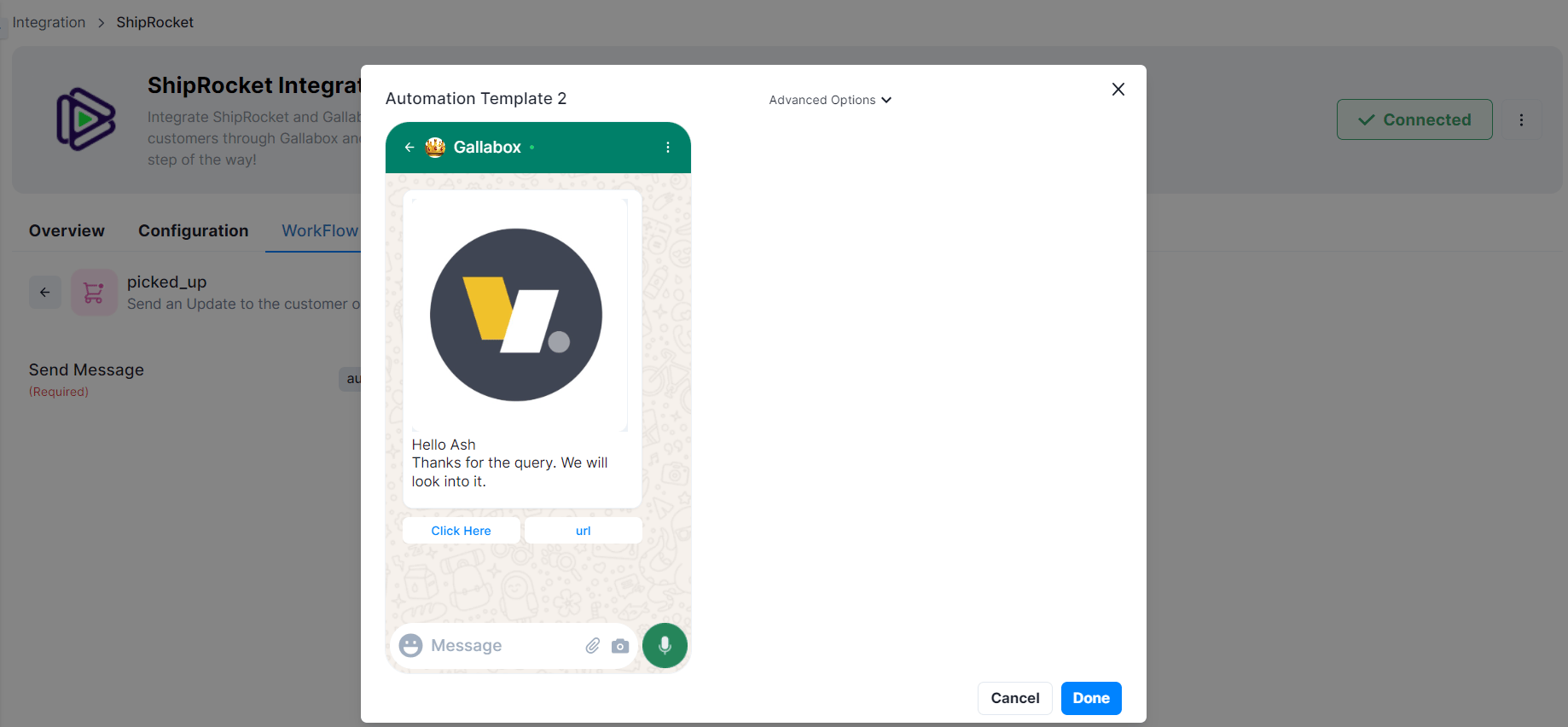 ***Great! Now you are good to go with the template.** Whenever the order is picked, a message will be shared with your customers.*
### Delivery Updates Notifications
To send the out of delivery notifications automatically, you will have to create a workflow under the ShipRocket Integration with Gallabox. Let's delve into that.
1. Go to **My Integration**. Click on the **ShipRocket Integration** and choose the connection you would like to use.
2. Click on the toggle button beside **Out for Delivery Workflow**
***Great! Now you are good to go with the template.** Whenever the order is picked, a message will be shared with your customers.*
### Delivery Updates Notifications
To send the out of delivery notifications automatically, you will have to create a workflow under the ShipRocket Integration with Gallabox. Let's delve into that.
1. Go to **My Integration**. Click on the **ShipRocket Integration** and choose the connection you would like to use.
2. Click on the toggle button beside **Out for Delivery Workflow**
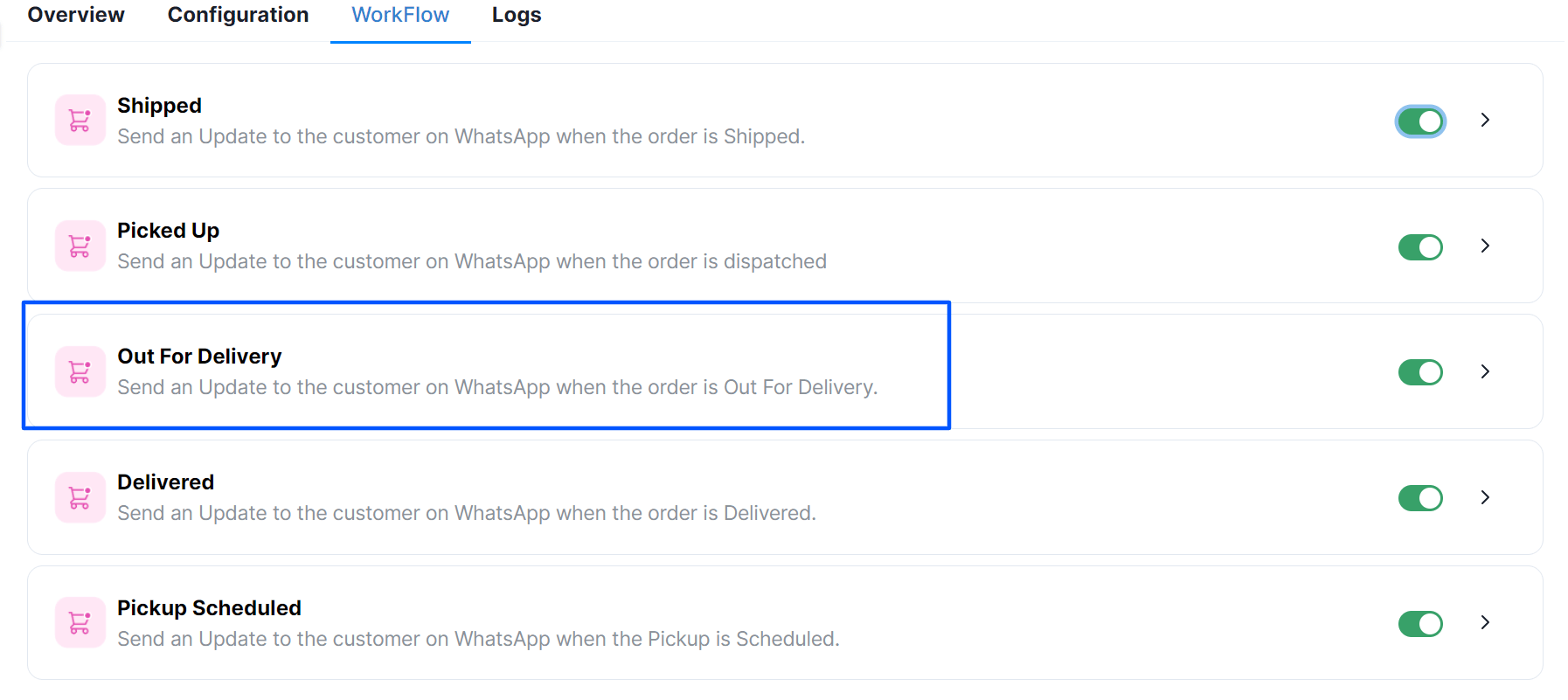 and choose a **Message Template** that you want to send to your customers when they make a payment to your business.
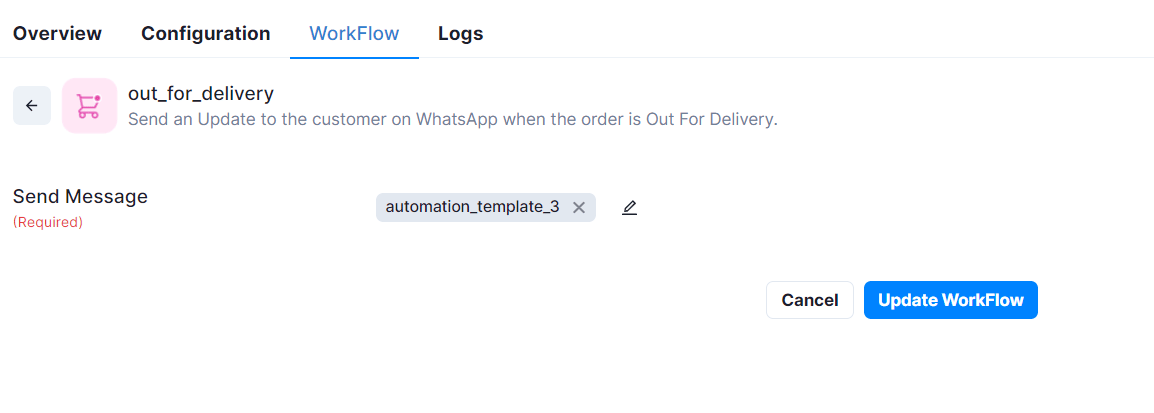 3. Map the **variables** for the selected message templates and click on **Submit.**
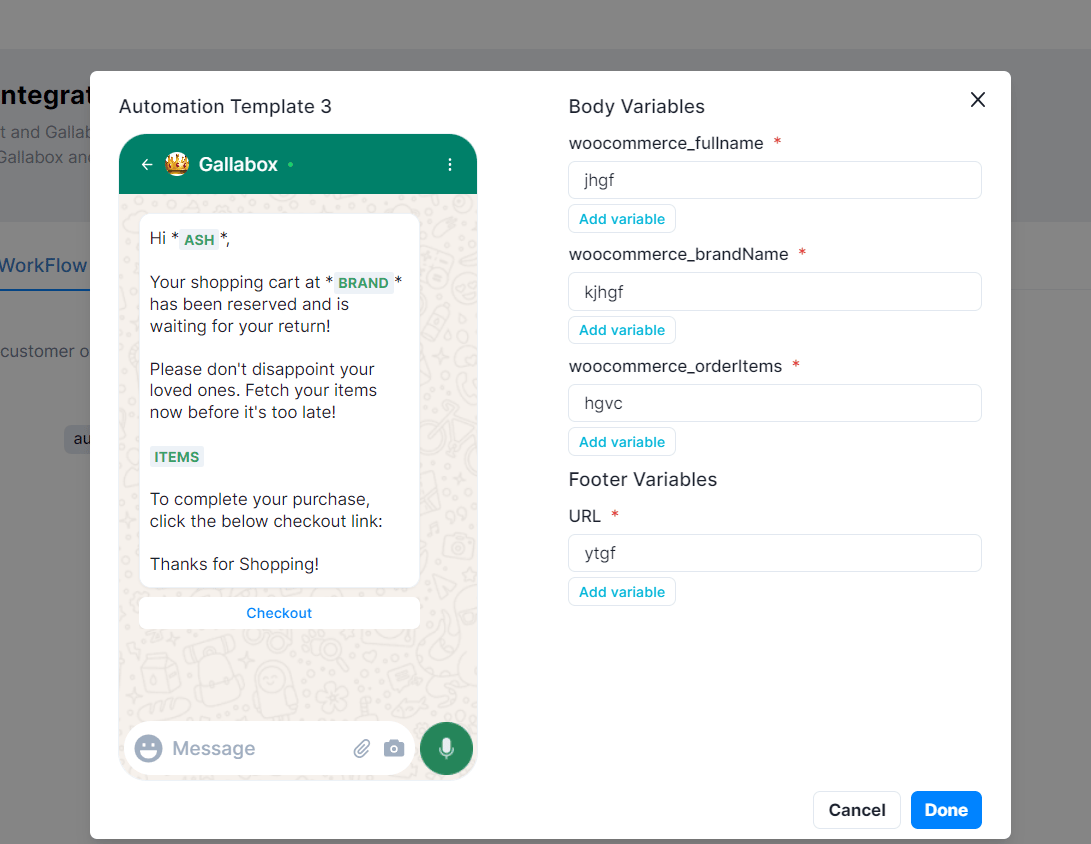 ***Great! Now you are good to go with the template.** Whenever the order is out of delivery, a message will be shared with your customers.*
### Delivery Success Notifications
To send the order delivered notifications automatically, you will have to create a workflow under the ShipRocket Integration with Gallabox. Let's delve into that.
1. Go to **My Integration**. Click on the **ShipRocket Integration** and choose the connection you would like to use.
2. Click on Use button beside **Delivered Workflow**,
***Great! Now you are good to go with the template.** Whenever the order is out of delivery, a message will be shared with your customers.*
### Delivery Success Notifications
To send the order delivered notifications automatically, you will have to create a workflow under the ShipRocket Integration with Gallabox. Let's delve into that.
1. Go to **My Integration**. Click on the **ShipRocket Integration** and choose the connection you would like to use.
2. Click on Use button beside **Delivered Workflow**,
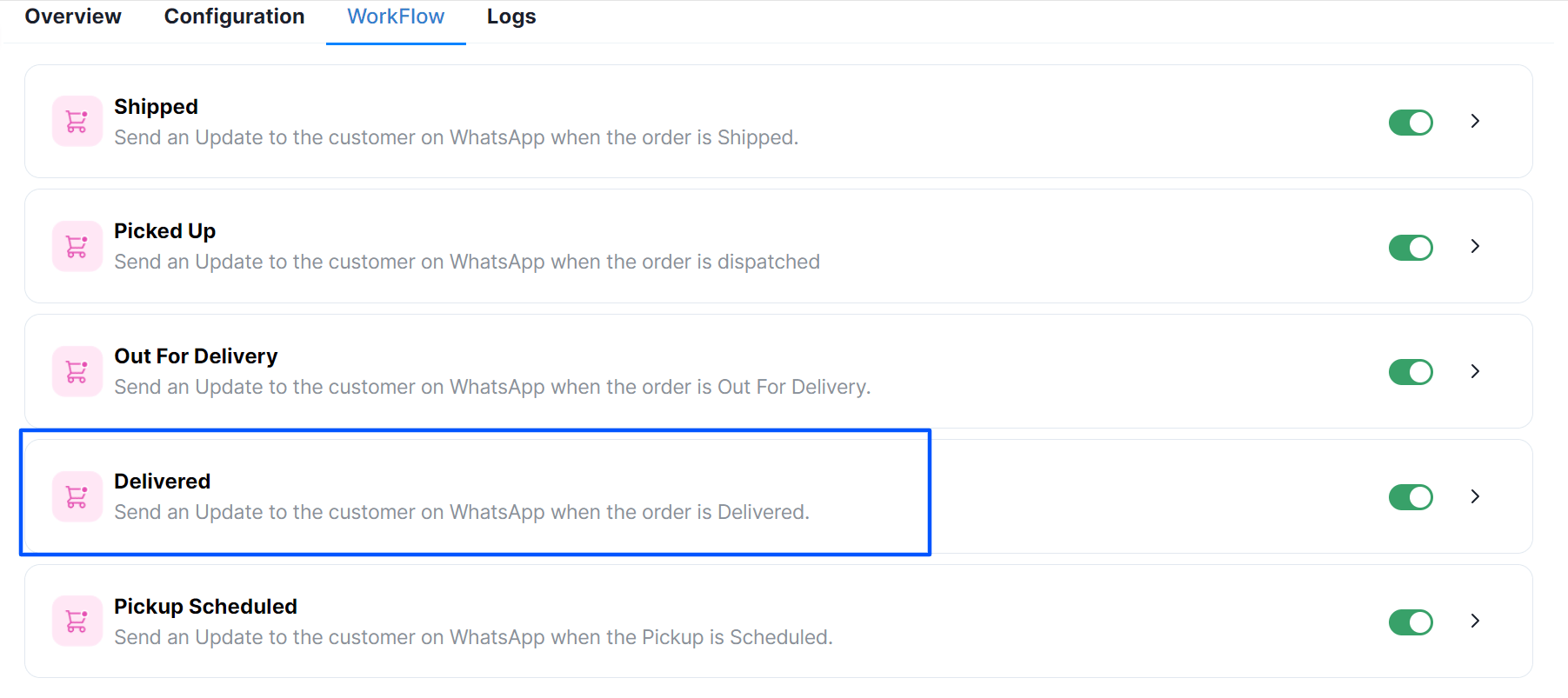 and choose a **Message Template** that you want to send to your customers when they make a payment to your business.
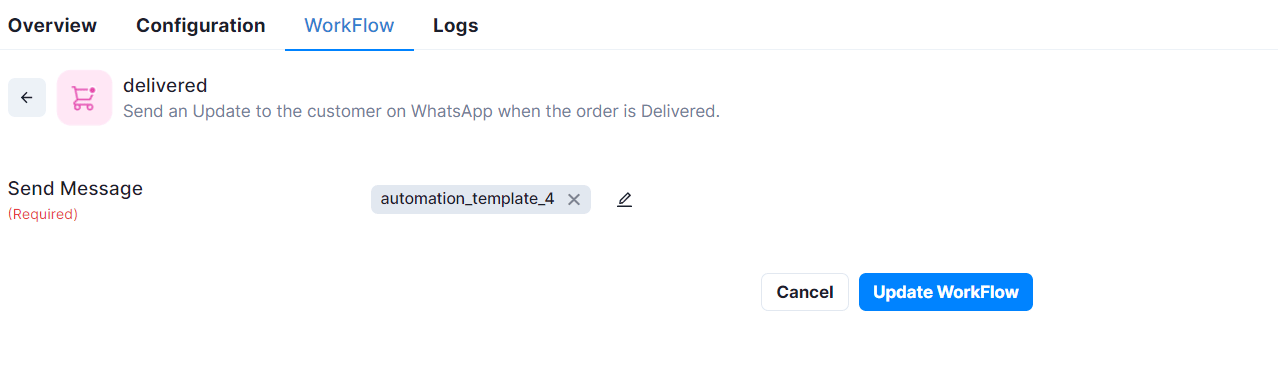 3. Map the **variables** for the selected message templates and click on **Submit.**
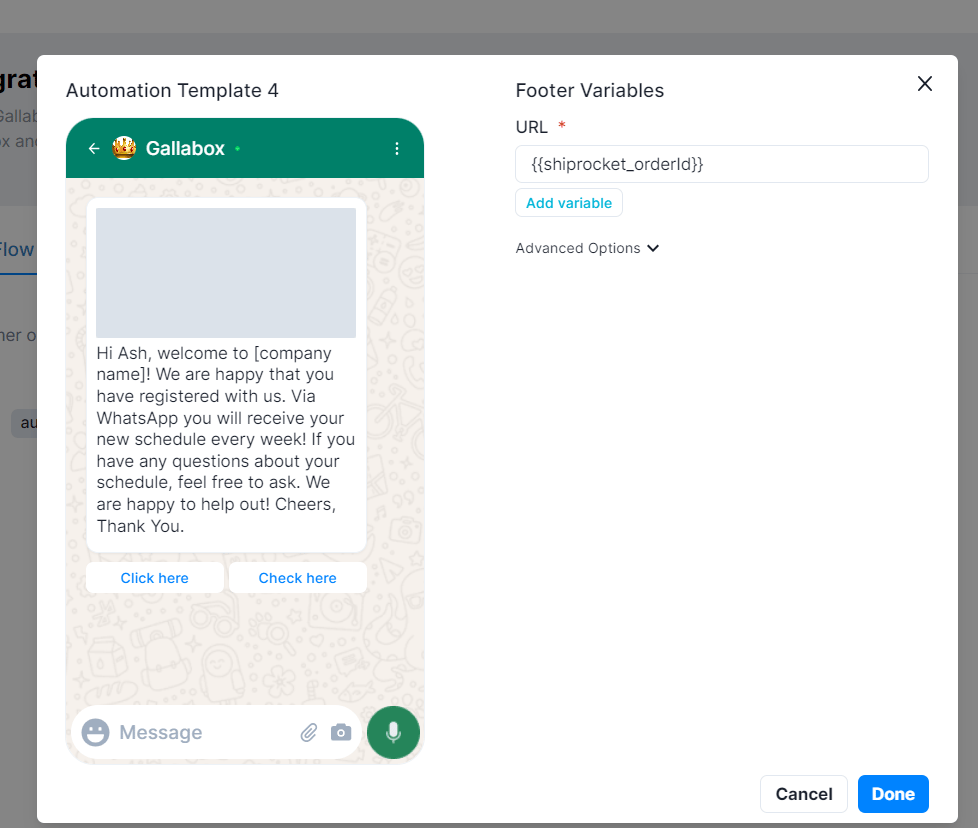 ***Great! Now you are good to go with the template.** Whenever the order is delivered, a message will be shared with your customers.*
### Scheduled Pickup Alerts
To send the order scheduled for pickup notifications automatically, you will have to create a workflow under the ShipRocket Integration with Gallabox. Let's delve into that.
1. Go to **My Integration**. Click on the **ShipRocket Integration** and choose the connection you would like to use.
2. Click on Use button beside **Pickup Scheduled Workflow**,
***Great! Now you are good to go with the template.** Whenever the order is delivered, a message will be shared with your customers.*
### Scheduled Pickup Alerts
To send the order scheduled for pickup notifications automatically, you will have to create a workflow under the ShipRocket Integration with Gallabox. Let's delve into that.
1. Go to **My Integration**. Click on the **ShipRocket Integration** and choose the connection you would like to use.
2. Click on Use button beside **Pickup Scheduled Workflow**,
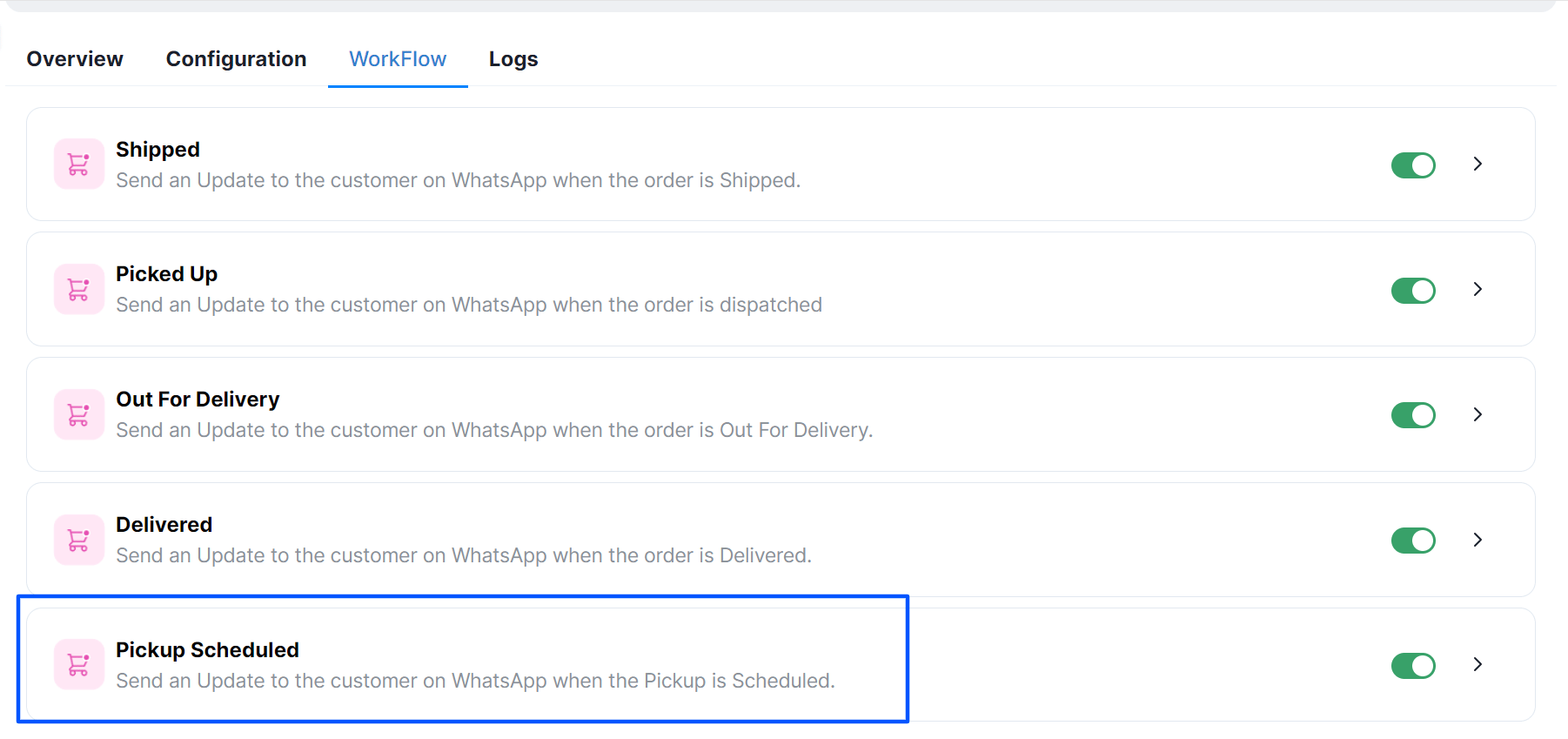 and choose a **Message Template** that you want to send to your customers when they make a payment to your business.
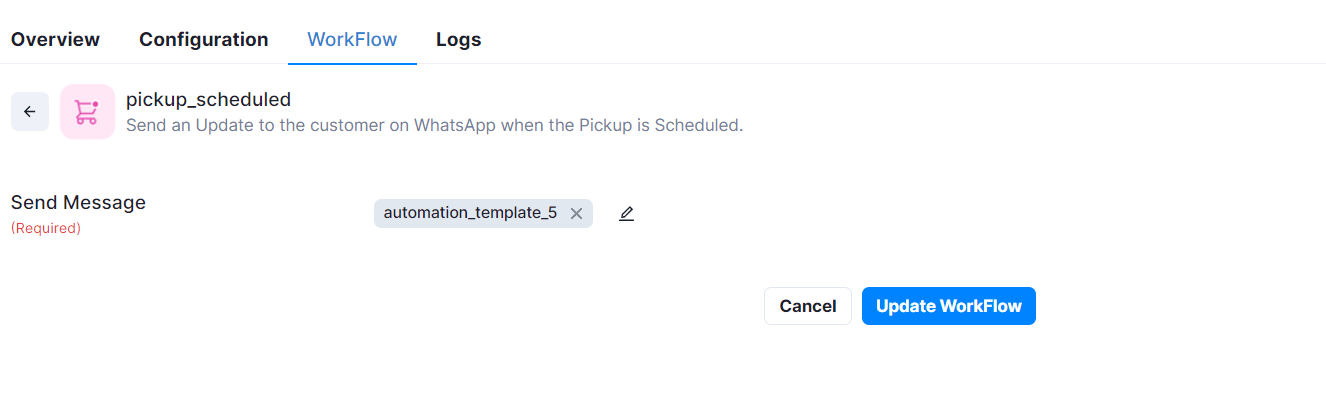 3. Map the **variables** for the selected message templates and click on **Submit.**
***Great! Now you are good to go with the template.** Whenever the order is s\_cheduled for pickup*, a message will be shared with your customers.\_
3. Map the **variables** for the selected message templates and click on **Submit.**
***Great! Now you are good to go with the template.** Whenever the order is s\_cheduled for pickup*, a message will be shared with your customers.\_