> ## Documentation Index
> Fetch the complete documentation index at: https://docs-next.gallabox.com/llms.txt
> Use this file to discover all available pages before exploring further.
# Workflows for Razorpay
> Stay informed with Razorpay's Alerts. Create workflows through Razorpay Integration to automatically notify customers when payments are captured, failed, or refunded.
### Payment Capture Alerts
To send the payment notifications automatically when a payment is captured, you will have to create a workflow under the Razorpay Integration with Gallabox. Let's delve into that.
1. Go to **Integration** on your Gallabox dashboard and from My Integration Section , choose the connection under the Razorpay Integration.
2. Click on Use button beside **Payment Captured Workflow**, and choose a **Message Template** that you want to send to your customers when they make a payment to your business. Map the right **variables** for the selected message template and add the payload for the button if you would like to trigger a bot on button reply.
3. Add the Action like updating the contact tag with the Tag like `payment made` to update the contact detail and click on **Submit.**
***Great! Now you are good to go with the template.** Whenever you receive a payment, a message will be shared with the customers.*
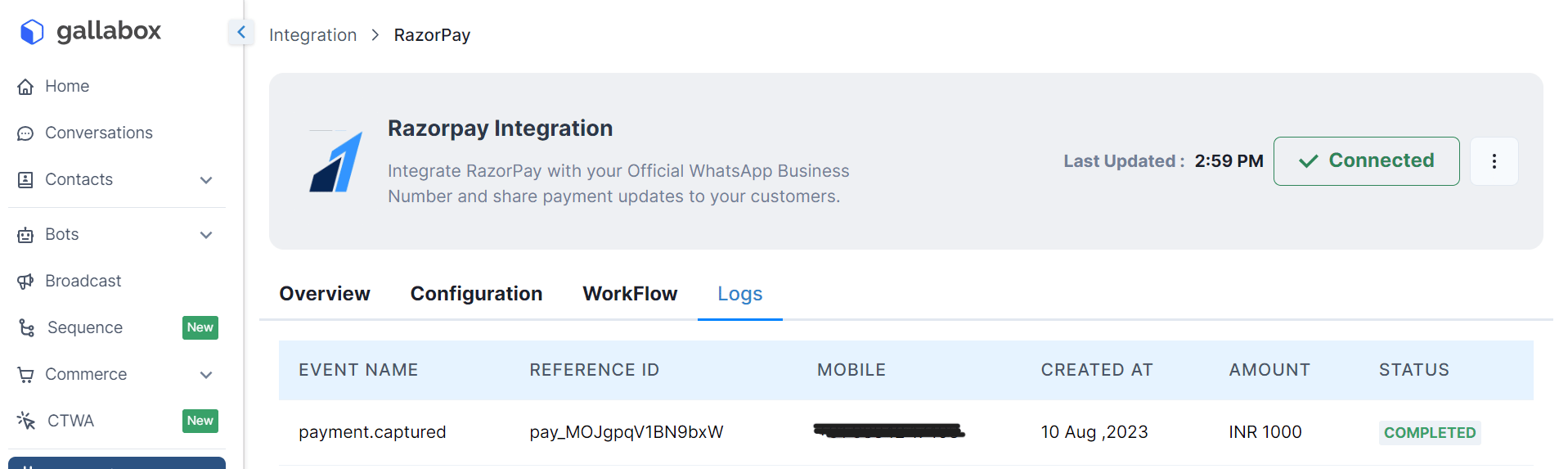 ### Similarly you can create Workflows for Payment Failed and Refund Status Alerts.
### Remove Razorpay Integration
If you want to delete the Razorpay Integration due to some reasons, follow the 2 step process listed below.
1. Go to **Integration** on your Gallabox dashboard. Click on the **Integrated Razorpay Application.**
2. Click on the 3 dots besides Connected and you will find a delete option. When you click on Delete, the integration will be deleted and cannot be recovered.
***Congratulations! You have successfully deleted the integration.***
### Disable the Workflows
If you want to disable the Razorpay workflow due to some reasons, just switch off the toggle beside the workflow.
If the Toggle is ON, as shown in the picture below it means the workflow is working.
### Similarly you can create Workflows for Payment Failed and Refund Status Alerts.
### Remove Razorpay Integration
If you want to delete the Razorpay Integration due to some reasons, follow the 2 step process listed below.
1. Go to **Integration** on your Gallabox dashboard. Click on the **Integrated Razorpay Application.**
2. Click on the 3 dots besides Connected and you will find a delete option. When you click on Delete, the integration will be deleted and cannot be recovered.
***Congratulations! You have successfully deleted the integration.***
### Disable the Workflows
If you want to disable the Razorpay workflow due to some reasons, just switch off the toggle beside the workflow.
If the Toggle is ON, as shown in the picture below it means the workflow is working.
 If the Toggle is OFF, as shown in the picture below it means the workflow is disabled.
